|
|
|
|
|
Start TracBack |
|
|
 |
 |
 |
|
|
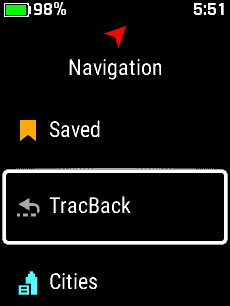
Select
'TracBack' in |
Select
'Navigate' to |
Select
'Edit
TracBack' to |
|
|
Navigation Menu |
begin TracBack navigation |
configure TracBack options |
|
 |
|
|
|
|
|
|
|
|
|
|
Edit TracBack |
|
|
|
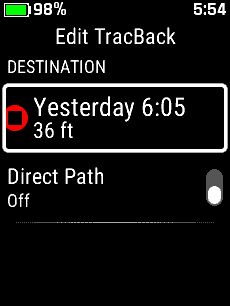
Edit TracBack Destination |
- Select a tracking point saved during the previous 24
hour period as the TracBack destination
|
 |
 |
 |
 |
|
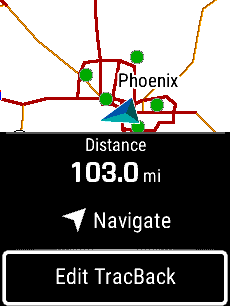
Select 'TracBack' |
Select 'Edit TracBack' |
Select 'Destination' |

 |
|
|
|
|
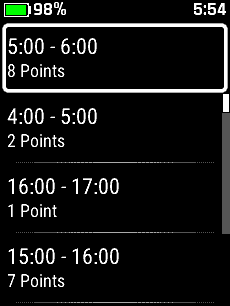
Scroll available time slots |
|
|
 |
 |
 |
 |
|
Select desired time slot |
|
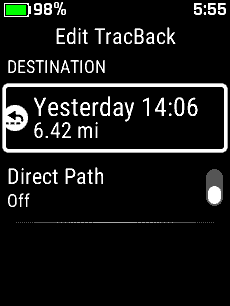
Select desired location |
TracBack destination is updated |
|
|
Scroll available locations |
|
 |
|
|
|
|
|
Edit TracBack Routing |
- Choose 'Direct Path Off' to navigate all saved tracking
points in reverse sequence
- Choose 'Direct Path On' to navigate directly to the
TracBack destination, bypassing all intermediary tracking
points
|
 |
 |
 |
 |
|
Select 'TracBack' |
Select 'Edit TracBack' |
Navigate 'Direct Path Off' |
Navigate 'Direct Path On' |
|
|
|
to toggle, or
to exit |
to toggle, or
to exit |
|
|
|
|
|
|
|
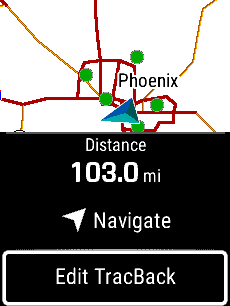
Navigate TracBack |
|
|
|
Direct Path Off |
- Navigate all saved tracking points in reverse sequence
|
 |
 |
 |
 |
|
Select 'TracBack' |
Select 'Edit TracBack' |
Select 'Direct Path Off' |
Select 'Navigate' |
|
|
|
|
|
|
|
 |
 |
 |
 |
|
Course is calculated |
Select 'Start' |
|
|
|
|
|
View Map |
View Compass |
|
|
 |
 |
 |
 |
|
|
|
|
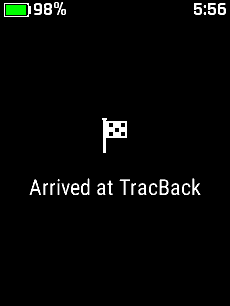
Navigation Completed |
|
View Trip Computer |
View Navigation Info |
View Tracking Status |
|
|
|
|
|
|
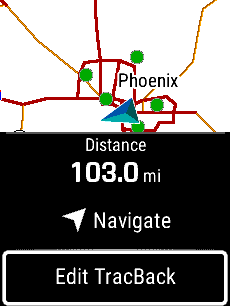
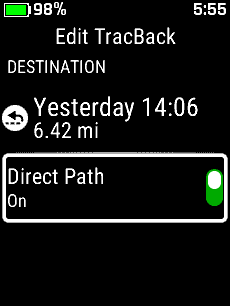
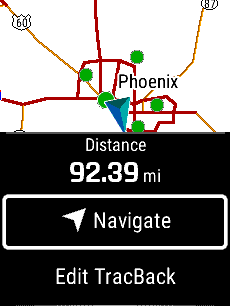
Direct Path On |
- Navigate directly to the TracBack destination, bypassing
all intermediary tracking points
|
 |
 |
 |
 |
|
Select 'TracBack' |
Select 'Edit TracBack' |
Select 'Direct Path On' |
Select 'Navigate' |
|
|
|
|
|
|
|
 |
 |
 |
 |
|
Course is calculated |
Select 'Start' |
|
|
|
|
|
View Map |
View Compass |
|
|
 |
 |
 |
 |
|
|
|
|
Navigation Completed |
|
View Trip Computer |
View Navigation Info |
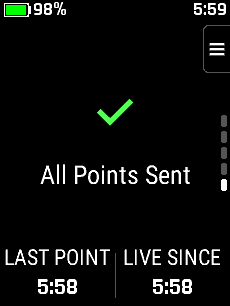
View Tracking Status |
|
|
|
|
|
|
|
|
|

