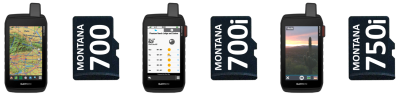
Want to give your Montana 7x0 a custom name or icon?
Want your Montana 7x0 to stand out when connected to your computer?
You've come to the right place!
Note:
Mass Storage device required, MTP devices are not compatible.
Create Icon
- Select or create images to use as icons for your Montana 7x0 and microSD Card
- Size each image to 256x256 pixels and save in PNG format
- Visit this page to convert each PNG file to ICO format
- Save the converted ICO files to a safe location on your PC
- Or choose from these Montana 7x0 Icons
Install Icon
- Copy your new custom Montana 7x0 icon to the [Montana 7x0]\Garmin\ directory.
- Copy your custom microSD Card icon to the [microSD]\Garmin\ directory.
Enable Icon
- Connect your Montana 7x0 and enter Mass Storage Mode
- Navigate to the root directory of your Montana 7x0 GPSr
- Open autorun.inf with Notepad (or Notepad++)
The default autorun.inf file will look similar to this:
[autorun]
icon=Garmin\Garmintriangletm.ico
action=Garmin Montana 700
label=Garmin Montana 700
Modify the second line to reflect the name and location of the custom icon you copied to your Montana 7x0. For example, if we placed an icon named Montana 7x0.ico in the [Montana 7x0]\Garmin\ directory, we would make the following modification:
[autorun]
icon=Garmin\Montana 7x0.ico
action=Garmin Montana 700
label=Garmin Montana 700
Save the edited autorun.inf file.
To do the same for the microSD Card, place the Montana 7x0 uSD.ico in the [microSD]\Garmin\ directory and the autorun.inf file to the root directory of your microSD Card, and make similar edits:
[autorun]
icon=Garmin\Montana 7x0 uSD.ico
action=Garmin Montana 700
label=Garmin Montana 700
Save the edited autorun.inf file.
Change Device Name
Want to change the name of your device in Windows Explorer? If we wanted our Montana 7x0 to appear as "Montana 700i" in windows explorer, we would make the following edit:
[autorun]
icon=Garmin\Montana 7x0.ico
action=Garmin Montana 700
label=Montana 700i
Save the edited autorun.inf file.
Similarly, we can make the following edit to the autorun.inf file on the Montana 7x0 microSD card:
[autorun]
icon=Garmin\Montana 7x0 uSD.ico
action=Garmin Montana 700
label=Montana 700i uSD
Save the edited autorun.inf file.
