Do you have maps installed on your Garmin GPSr that you frequently use with BaseCamp or MapSource? Are some of these maps available only with your GPSr
connected? Would you like to have access to these maps in BaseCamp and/or MapSource without having your
Garmin GPSr connected?
Two popular methods to accomplish these tasks are demonstrated here. These methods do not duplicate any GPSr navigation functionality.
Preparation
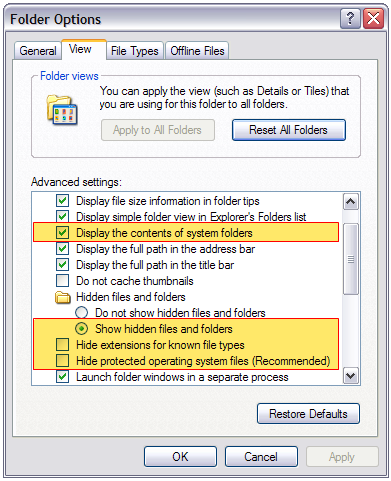
PC Only: To ensure all required files and folders are visible and copied correctly, do the following:
- Open the 'Start' menu
- Select 'Control Panel'
- Open 'Folder Options'
- Duplicate these settings under the 'View' tab
Format FlashDrive/microSD Card
- Prepare a USB FlashDrive/microSD Card for use with Garmin BaseCamp and your Garmin GPSr.
- This process will permanently erase all data on the USB FlashDrive/microSD Card.
- Make sure you are formatting the correct drive!
- For microSD cards > 32GB please use GUIFormat or similar software.
1. Connect and locate the host USB FlashDrive/microSD Card in windows explorer
---

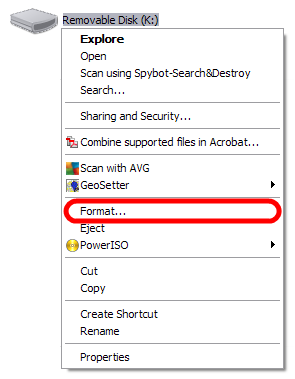
2. Right Click and Select "Format"
---
3. Choose "FAT32", "Quick Format" and select "Start"
---

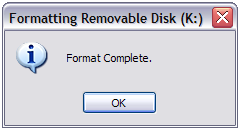
4. After format completion, select "OK"
---
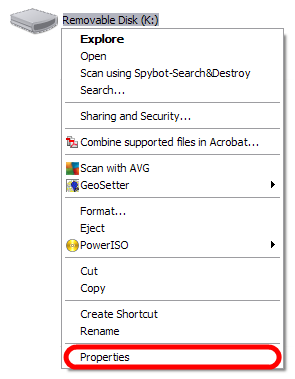
5. Right Click the FlashDrive/microSD Card and select "Properties"
---
6. Confirm FAT32 file system and select "OK"
---

7. USB FlashDrive/microSD Card preparation is complete.
GPSr Clone
Create an (almost) identical clone of your Garmin GPSr and use it with any host computer. Garmin software applications will not be able to differentiate between this clone and the actual GPSr.1. Prepare a USB Flash Drive
2. Connect your Garmin GPSr via USB in Mass Storage Mode
3. Open the root directory of your Garmin GPSr
---

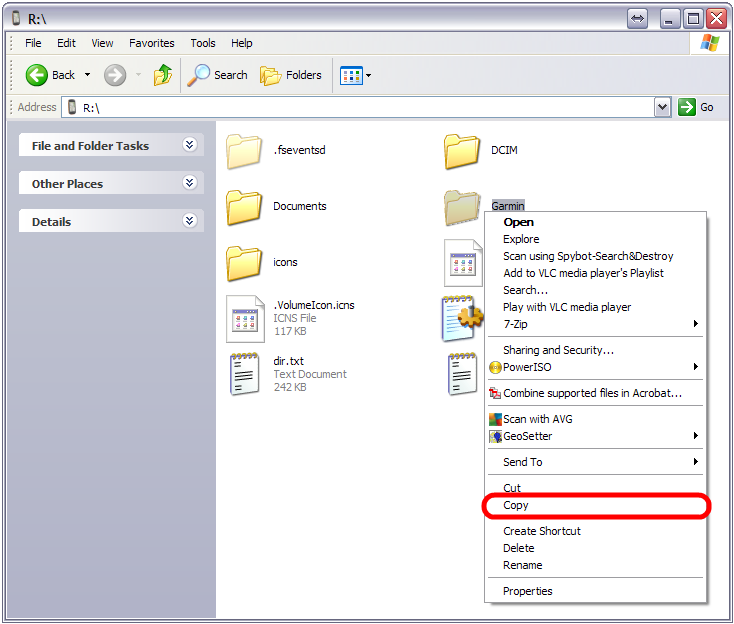
4. Right Click and "Copy" the Garmin directory
---
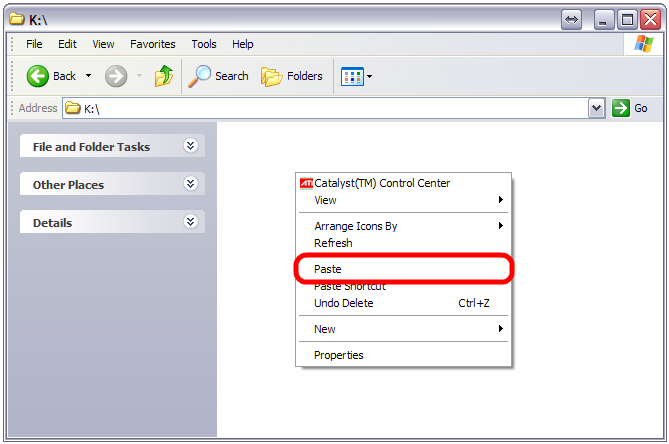
5. Open root directory of USB FlashDrive, Right Click and "Paste"
---
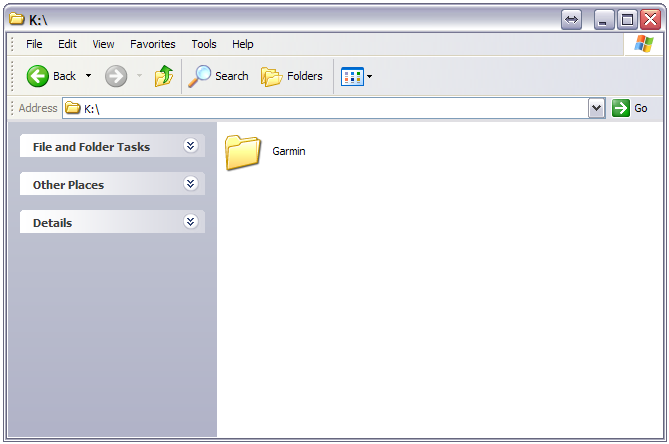
6. Allow the Garmin directory to be copied completely to the USB FlashDrive
---
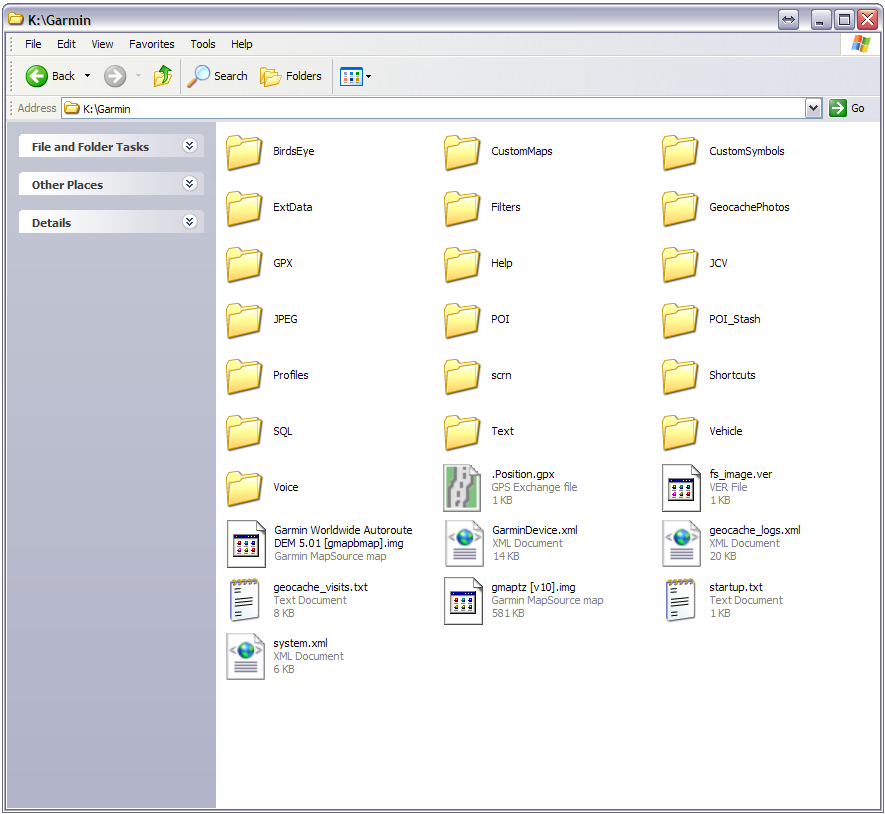
7. Copy any additionally desired maps and files to the appropriate folders in the USB FlashDrive \Garmin\ directory
---
8. Use JaVaWa Device Manager to enable/disable installed map visibility
9. The USB FlashDrive is now ready to use with BaseCamp or MapSource on any computer!
10. Add even more functionality by installing and running your favorite applications directly from the USB FlashDrive!
Enjoy!
Garmin FlashDrive
Transform a USB FlashDrive into a Virtual Garmin GPSr and use it with any host computer1. Prepare a USB FlashDrive
2. Download FlashDrive.zip
---
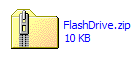
3. Extract FlashDrive directory from FlashDrive.zip
---
4. Open root directory of USB FlashDrive
---

5. Copy the contents of the FlashDrive folder to the USB FlashDrive root directory
---
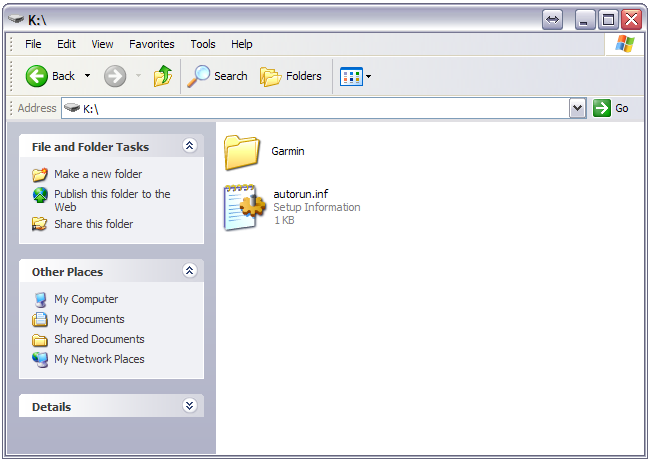
6. Eject, remove and reconnect the USB FlashDrive. This is how it should now appear in windows explorer:
---

7. Copy desired maps and files to the appropriate folders in the Garmin FlashDrive \Garmin\ directory:
---
8. Use JaVaWa Device Manager to enable/disable installed map visibility
9. The Garmin FlashDrive is now ready to use with BaseCamp or MapSource on any computer!
10. Add even more functionality by installing and running your favorite applications directly from the Garmin FlashDrive!
Enjoy!
