- Managing activity recording has never been easier!
- Access frequently used activity controls and information with an efficient and easy to use menu driven interface.
- Recording Controls is an evolution of the Current Activity and Current Track pages available on previous models.
- Activity recording status can be controlled remotely from the Stopwatch dashboard.
- Recording Controls can also be accessed directly from the Status page.
Dynamic Icon
- The Recording Controls icon provides at-a-glance activity recording status information in real time:
 |
 |
||
|---|---|---|---|
| Recording | Not Recording |
Page Tabs
- All Recording Controls functions can be accessed from these tabs:
 |
||
|---|---|---|
| Recording Controls | ||
 |
||
| Activity Information | ||
 |
||
| Activity Map | ||
 |
||
| Activity Plot |
Recording Controls
- View current activity type, time, distance, and color.
- Provides quick access to recording controls.
Start Activity Recording
- Start or resume current activity recording.
- When Link with Recording is enabled:
- inReach Tracking will be enabled when the activity recording is started.
- When Link with Recording is disabled:
- inReach Tracking sessions started while an Activity is recording will resume with the Recording Controls Activity.
- View the Montana 7x0i Tracking Flowchart for additional clarification.
- When Link with Recording is enabled:
 |
 |
 |
|
|---|---|---|---|
| Track recording paused |
 |
Track recording active |
Stop Activity Recording
- Stop or pause current activity recording.
-
When Link with Recording is enabled:
- inReach Tracking will be disabled when the activity recording is paused.
-
When Link with Recording is
disabled:
- inReach Tracking sessions started while an Activity is recording will pause with the Recording Controls Activity.
- inReach Tracking sessions started while an Activity is not recording will stop the next time the Recording Controls Activity is paused.
- Stopping an inReach Tracking session that was started while an Activity is not recording will also pause the Recording Controls Activity.
- View the Montana 7x0i Tracking Flowchart for additional clarification.
-
When Link with Recording is enabled:
 |
 |
 |
|
|---|---|---|---|
| Track recording active |
 |
Track recording paused |
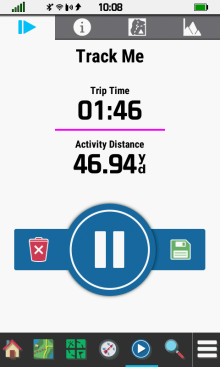
Clear Activity Recording
- Reset recorded activity data to zero.
 |
 |
 |
 |
|---|---|---|---|
 |
Confirmation menu | Select [Clear] to proceed | Select [Cancel] to abort |
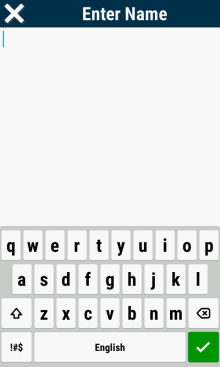
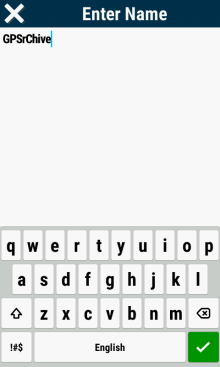
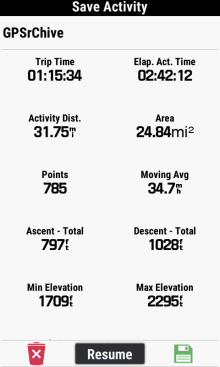
Rename Activity Recording
- Rename and save the current activity recording.
 |
 |
 |
 |
|---|---|---|---|
 |
Save Activity Menu | Select activity name |

|
 |
 |
 |
 |
| Enter desired activity name |
 |
|
Activity is saved |
Save Activity Recording
- Save the current activity recording in *.fit and *.gpx file formats (as configured).
- Activities (*.fit) are saved in the /Garmin/Activities/ directory and can be reviewed in the Recorded Activities page.
- Tracks (*.gpx) are saved in the /Garmin/GPX/Archive/ directory and can be reviewed in the Saved Tracks page.
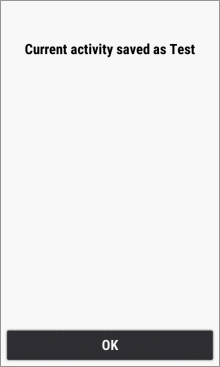
Save Complete
Activity
- Save the complete current activity recording.
 |
 |
 |
 |
|---|---|---|---|
|
|
Rename activity if desired |
|
Export Complete |
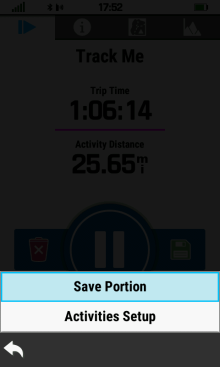
Save Partial
Activity
- Save a selected portion of the current activity recording.
 |
 |
 |
 |
|---|---|---|---|
 |
[Save Portion] | Available track segments are displayed |
Select first track segment |
 |
 |
 |
 |
| Select last track segment |
Edit
track name if desired |
Track export in progress | Track export complete |
Data Reset
- Clear Current Activity data, Trip Computer data, both, or neither.
- Displayed only when [Setup > Recording > Advanced Setup > Recorded Data Reset = Prompted]
 |
 |
 |
 |
|---|---|---|---|
| Data Reset Menu | Toggle [Current Activity] Reset On/Off as desired |
Toggle [Trip Data] Reset On/Off as desired |
Select [Apply] |
Activity Information
- View current activity statistics, change activity color, and toggle activity visibility on the map page.
Activity Data
- View current activity configuration and information.
 |
 |
 |
|
|---|---|---|---|
| View activity settings and current statistics |
Scroll to view all activity data |
[Activities Setup] |
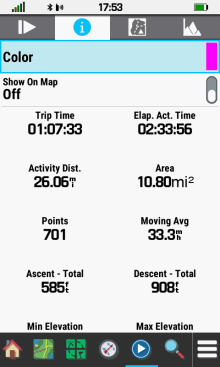
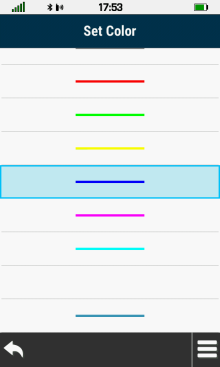
Activity Color
- Change current activity color.
 |
 |
 |
 |
|---|---|---|---|
| Select [Color] | Scroll available colors | Select desired color | Activity color is updated |
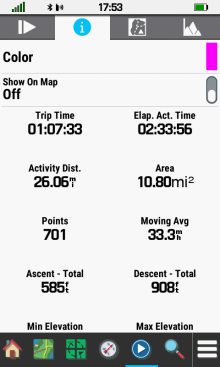
Activity Visibility
- Change current activity map page visibility.
 |
 |
 |
 |
|---|---|---|---|
| Toggle [Show On Map] Off | Activity will show on map | Toggle [Show On Map] On | Activity hidden on map |
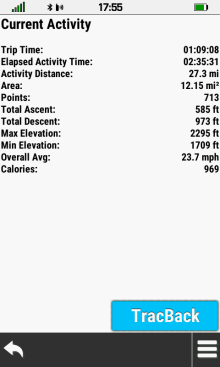
Activity Map
- View current activity track on map.
 |
 |
 |
 |
|---|---|---|---|
| Map page auto-zooms
to display complete activity |
[Current Activity] | Current Activity details | Select [TracBack] to swap Start and Finish points and navigate activity in reverse |
Activity Plot
- View current activity elevation plot.
 |
 |
 |
 |
|---|---|---|---|
| Current Activity Elevation Plot | Pan and Zoom Elevation Plot as desired | Select plot points to view time stamp and elevation |
|
